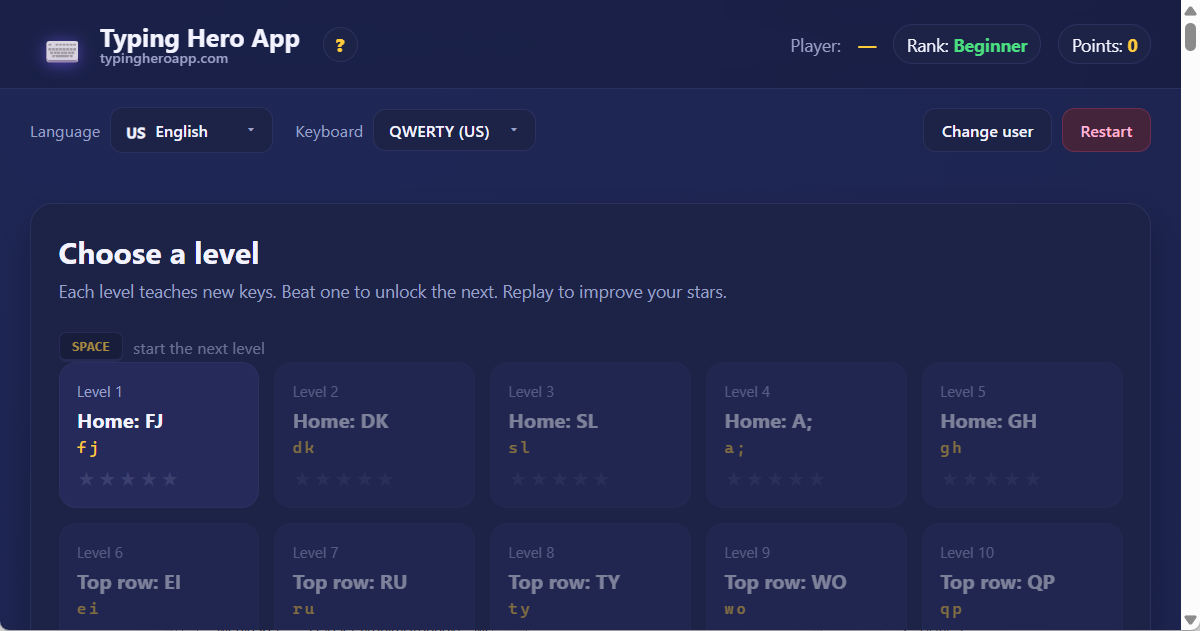
Choose a level
Each level teaches new keys. Beat one to unlock the next. Replay to improve your stars.
SPACE start the next level
Each level teaches new keys. Beat one to unlock the next. Replay to improve your stars.
Hi! Welcome to the English page of Typing Hero App! This is a free, browser-based typing tutor, currently set up for the QWERTZ (SK) keyboard layout. Whether you're a total beginner or just want to type faster, here in English you can learn the 10-finger touch typing method step by step. No signup, no downloads — everything runs in your browser, and all your progress stays with you. The app supports 45 languages and 39 different keyboard layouts: explore the home page or try it in another language, like Magyar, Deutsch, Français, Español, Italiano, Русский, or Ελληνικά.
Touch typing (also called the 10-finger method) means pressing every key with a specific finger — without looking down at the keyboard. The method was invented by Frank McGurrin back in 1888, and it's been taught around the world ever since. Why is it great?
In English, touch typing is especially useful because English is the most common typing language in the world. Once you master it on the QWERTZ (SK) keyboard, you can use the same skills almost anywhere — programming, online chats, school assignments, you name it.
QWERTZ is the German and Central European variant of QWERTY. The main difference: the Y and Z keys swap places in the top row, because Z is much more common than Y in German. In English, QWERTZ feels a bit awkward at first because the Y and Z are flipped, but you can absolutely type English with it — and it's especially handy if you frequently switch between English and German or other Central European languages.
Curious about other layouts? You can try the same app on other keyboards. In English, there are currently 33 different Latin-alphabet layouts available — the full list is below in the Related layouts section.
The app is simple and friendly. When you first open it, you'll see the level selection screen: lessons appear as tiles. The first tile is already unlocked (Level 1), the others are locked with a small padlock icon. To unlock a level, you have to complete the previous one — that's how you progress step by step.
The stars on each tile show how many stars you've earned at that level (max 5). Click an unlocked tile to start the lesson.
Important keys for navigating the interface:
In the header you'll find the important buttons: Change user, Restart, and the language and keyboard dropdown menus. You can always return to the English home page by clicking the logo.
Every level is split into three phases. This helps you not just recognize letters, but actually learn how to use them:
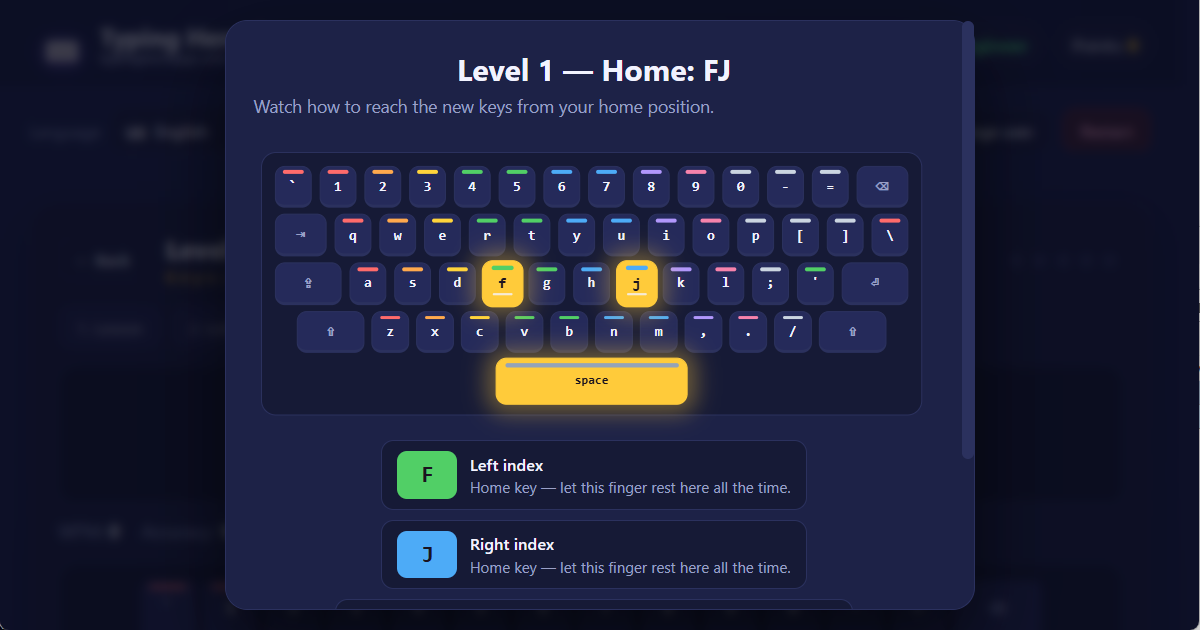
First, the app introduces the new keys with a cute little animation. A mini keyboard shows green dots indicating which finger to move to which key from the home row. Then you type the displayed text at your own pace. There's no time limit in this phase — the goal is to type correctly.
Now for the fun part! A 30-second flash game where random letters pop up on screen, and you have to hit the right one quickly. Building a streak of correct hits gives you a bonus: each accurate keystroke is worth more. This builds your reflexes and speed.
Finally, you type real English words from the English word bank — using only the letters you've learned so far. This phase teaches the "rhythm": how a whole word flows under your fingers. Here's where you'll feel how much you've improved!
The app calculates the final result from the average of all three phases: average accuracy, average speed (WPM), and stars earned. It's worth repeating each lesson until you collect all 5 stars — this signals that your knowledge is solid and you're ready to move up to the next level!
On the QWERTZ (SK) keyboard in English, the curriculum has about 19 lessons, split into four big groups:
The lesson order is designed so that you only learn 2–4 new letters per level. That way you won't feel overwhelmed, and your muscle memory has time to lock in the new movements.
The app uses a game-like point system to keep you motivated. Each level gives you 1 to 5 stars based on your performance:
| Stars | Accuracy | Speed (WPM) |
|---|---|---|
| ⭐⭐⭐⭐⭐ | 97% or more | 22 or more |
| ⭐⭐⭐⭐ | 93% or more | 16 or more |
| ⭐⭐⭐ | 88% or more | 10 or more |
| ⭐⭐ | 80% or more | any |
| ⭐ | under 80% | any |
Stars are calculated from the average of all three phases. Don't worry if you only get 2-3 stars the first time! You can retry a level any time, and if you earn more stars next time, your points grow too. Only new stars earn extra points — so once you have 5 stars on a level, you can't earn more points there, but it's still fun to keep breaking your own speed record!
Your point total is calculated like this:
points = number of stars × (50 + 10 × level number)
For example, 5 stars on Level 1 = 5 × 60 = 300 points. 5 stars on Level 10 = 5 × 150 = 750 points. The higher the level, the more each star is worth — so aim for the max stars every time!
As you collect points, you'll climb through higher and higher ranks. The app distinguishes 8 ranks. Your rank shows in the small "rank badge" in the header. In English, the ranks are:
| # | Rank name | Points required |
|---|---|---|
| 1 | Beginner | 0 |
| 2 | Novice | 250 |
| 3 | Typist | 750 |
| 4 | Advanced | 1500 |
| 5 | Expert | 3000 |
| 6 | Master | 5000 |
| 7 | Grand Master | 8000 |
| 8 | Hero | 12000 |
Your rank always reflects the level you've reached. There's no upper limit — once you pass "Hero", you're a really, really good typist!
The app is available in 45 languages and supports 39 different keyboard layouts. English is one of the 45 main languages — other options include Hungarian, German, French, Spanish, Italian, Portuguese, Russian, Ukrainian, Bulgarian, Belarusian, Greek, Polish, Czech, Slovak, Croatian, Slovenian, Romanian, Turkish, Swedish, Norwegian, Danish, Finnish, Icelandic, Dutch, Vietnamese, and Lithuanian — to name just a few.
Use the language dropdown in the header to switch to another language any time. When you switch, the app automatically navigates to that language's own URL and loads its curriculum, accents, and word bank.
The keyboard layout dropdown lets you choose which physical keyboard you have. For example, if you're abroad with a different keyboard, just switch it here and the app updates the visuals instantly. The default for English is QWERTY (US), but you can switch to QWERTZ (DE) or any other layout if that's what you have. You can even experiment with the ergonomic layouts: Dvorak, Colemak, or Workman — these are cool, comfortable alternatives! (Note: to truly benefit from Dvorak, Colemak, or Workman's speed advantages, you need a physical Dvorak/Colemak/Workman keyboard — software-only switching just shows the layout on screen, but the key labels on your keyboard remain QWERTY.)
Here's a quick overview of the most commonly used languages and their default keyboard layouts, sorted alphabetically. Click any language to start typing in it right away!
| Language | Native | Default layout |
|---|---|---|
| Albanian | Shqip | QWERTZ (AL) |
| English | English | QWERTY (US) |
| Azerbaijani | Azərbaycanca | QWERTY (AZ) |
| Belarusian | Беларуская | ЙЦУКЕН (BY) |
| Bosanski | Bosanski | QWERTZ (HR) |
| Bulgarian | Български | БДС (BG) |
| Català | Català | QWERTY (ES) |
| Czech | Čeština | QWERTZ (CS) |
| Danish | Dansk | QWERTY (DK) |
| German | Deutsch | QWERTZ (DE) |
| Estonian | Eesti | QWERTY (EE) |
| Greek | Ελληνικά | QWERTY (GR) |
| Spanish | Español | QWERTY (ES) |
| Euskara | Euskara | QWERTY (ES) |
| Filipino | Filipino | QWERTY (US) |
| Finnish | Suomi | QWERTY (SE/FI) |
| Faroese | Føroyskt | QWERTY (FO) |
| French | Français | AZERTY (FR) |
| Gaeilge | Gaeilge | QWERTY (UK) |
| Galego | Galego | QWERTY (ES) |
| Croatian | Hrvatski | QWERTZ (HR) |
| Hungarian | Magyar | QWERTZ (HU) |
| Bahasa Indonesia | Bahasa Indonesia | QWERTY (US) |
| Icelandic | Íslenska | QWERTY (IS) |
| Italian | Italiano | QWERTY (IT) |
| Latvian | Latviešu | QWERTY (LV) |
| Lithuanian | Lietuvių | ĄŽERTY (LT) |
| Bahasa Melayu | Bahasa Melayu | QWERTY (US) |
| Maltese | Malti | QWERTY (MT) |
| Dutch | Nederlands | QWERTY (NL) |
| Norwegian | Norsk | QWERTY (NO) |
| Polish | Polski | QWERTY (PL) |
| Portuguese | Português | QWERTY (PT) |
| Português BR | Português BR | QWERTY (BR) |
| Romanian | Română | QWERTZ (RO) |
| Russian | Русский | ЙЦУКЕН (RU) |
| Srpski | Srpski | QWERTZ (HR) |
| Slovak | Slovenčina | QWERTZ (SK) |
| Slovenian | Slovenščina | QWERTZ (HR) |
| Kiswahili | Kiswahili | QWERTY (US) |
| Swedish | Svenska | QWERTY (SE/FI) |
| Turkish | Türkçe | QWERTY (TR) |
| Ukrainian | Українська | ЙЦУКЕН (UA) |
| Vietnamese | Tiếng Việt | QWERTY (VN) |
| Cymraeg | Cymraeg | QWERTY (UK) |
(The full list includes 45 languages — you can find them all in the language dropdown in the header.)
The app supports multiple users on the same computer. That's handy because you, your sibling, parents, or friends can all use the app on the same device, with separate saved progress for each person.
When you earn your first point, the app asks you for a name (stored only in your browser — never sent to any server). After that, your progress saves under that name. Use the Change user button in the header any time to switch: pick an existing user, or add a new one.
One of the app's important principles: all data stays in your own browser. There's no user account, no server, no cloud. Your progress is saved using a browser feature called localStorage — a safe, small storage area on your own machine that only Typing Hero App can access.
What this means for you:
If you want to make sure to keep your progress, always use the same browser on the same machine.
If you want to start completely fresh, click the Restart button in the header. You'll get two options:
Both options immediately and permanently delete the data, so the app shows a confirmation dialog before deleting. If you change your mind, just hit Cancel!
Here are some friendly tips from professional typists:
Be patient with yourself! On average, it takes 1-2 weeks of 15-20 minutes a day to see noticeable improvement. But you'll already smile after the very first week, seeing how much more accurate you've become! And with diligent practice, you can become a pro typist in just 1-2 months!
If you want to see how the app looks with different settings, here are some recommendations:
The QWERTZ (SK) layout isn't limited to English — though language and layout typically go in pairs, if you happen to have a QWERTZ (SK) keyboard physically, you can also explore other languages' user interfaces with it. Clicking any entry in the language table above takes you to that language's default layout, from which you can use the layout dropdown to set QWERTZ (SK) (when available).
Try the same game in a completely different language and layout — each has its own character:
And many more languages are available — choose any time from the language dropdown in the header!
We hope you enjoy Typing Hero App. If you have any questions or suggestions, write to us at: support@typingheroapp.com. Happy typing in English — or in any other language! 💛